
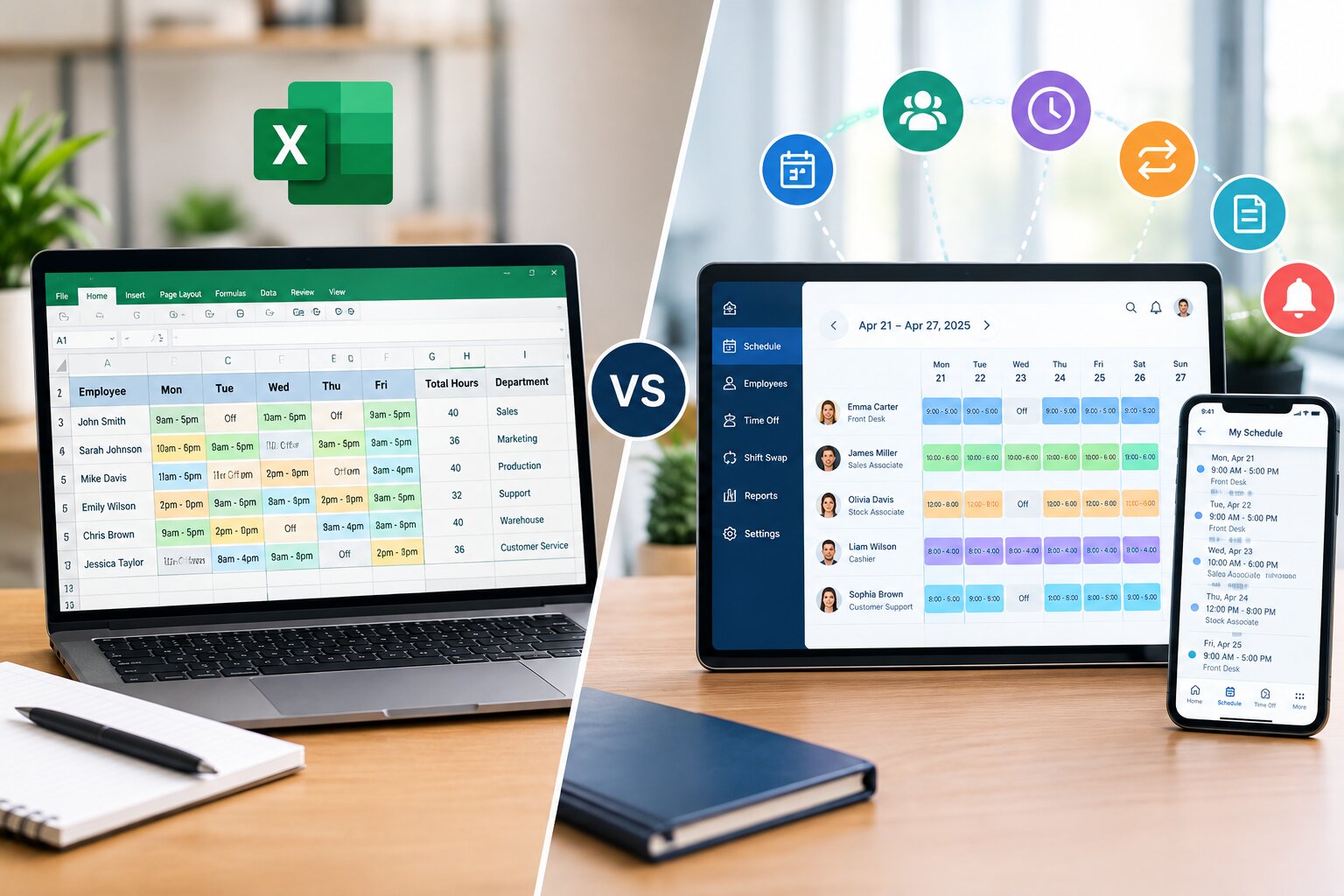
Managing employee schedules is an essential part of running a productive business. Whether you operate a retail store, restaurant, healthcare facility, warehouse, customer service team, or any other organization with employees working different hours, creating an accurate shift schedule is critical.
For many businesses, Microsoft Excel is often the first tool used to create employee schedules. It is familiar, flexible, and easy to access. Managers can create spreadsheets, add employee names, assign shifts, and organize weekly or monthly work schedules.
However, as a business grows, managing employee schedules through spreadsheets can become increasingly difficult. Schedule changes, employee availability, time-off requests, overtime, shift swaps, and communication can create challenges that Excel was not specifically designed to solve.
This leads to an important question:
Excel shift schedule vs. employee scheduling software: what’s the difference, and which option is better for managing your workforce?
While both can be used to create employee schedules, they offer very different capabilities. Excel is a general-purpose spreadsheet application, while employee scheduling software is designed specifically to manage workforce schedules and shift-based operations.
In this guide, we’ll compare Excel shift schedules vs. employee scheduling software, explore their advantages and limitations, and help you determine which option is best for your business.
What Is an Excel Shift Schedule?
An Excel shift schedule is a spreadsheet used to organize employee work hours and shifts.
Managers can create a table that includes information such as:
- Employee names
- Days of the week
- Shift start times
- Shift end times
- Departments
- Job roles
- Locations
- Total scheduled hours
For example, a basic weekly schedule may look like this:
| Employee | Monday | Tuesday | Wednesday | Thursday | Friday |
|---|---|---|---|---|---|
| John | 9 AM–5 PM | 9 AM–5 PM | Off | 9 AM–5 PM | 9 AM–5 PM |
| Sarah | Off | 10 AM–6 PM | 10 AM–6 PM | 10 AM–6 PM | Off |
| David | 2 PM–10 PM | 2 PM–10 PM | Off | 2 PM–10 PM | 2 PM–10 PM |
Excel allows managers to customize schedules based on their specific needs.
Businesses may use:
- Weekly shift schedule templates
- Monthly employee schedules
- Rotating shift schedules
- Staff scheduling spreadsheets
- Department-specific schedules
Because Excel provides flexibility, it is commonly used by small businesses and teams with relatively simple scheduling requirements.
However, manually managing spreadsheets can become challenging as scheduling complexity increases.
What Is Employee Scheduling Software?
Employee scheduling software is a digital solution specifically designed to create, manage, and communicate employee work schedules.
Instead of manually entering every shift into a spreadsheet, managers can use a dedicated scheduling platform to organize their workforce.
Employee scheduling software may include features such as:
- Drag-and-drop scheduling
- Employee availability tracking
- Shift templates
- Open shift management
- Shift swapping
- Time-off requests
- Automated notifications
- Schedule conflict detection
- Overtime monitoring
- Mobile access
- Employee self-service
- Multi-location scheduling
- Reporting and analytics
- Time tracking integration
The primary goal of employee scheduling software is to make workforce scheduling faster, easier, and more accurate.
Excel Shift Schedule vs. Employee Scheduling Software: Quick Comparison
| Feature | Excel Shift Schedule | Employee Scheduling Software |
|---|---|---|
| Create employee schedules | Yes | Yes |
| Customization | High | High |
| Manual data entry | Required | Reduced |
| Employee availability tracking | Manual | Built-in |
| Shift swapping | Manual | Automated options |
| Time-off requests | Manual | Built-in |
| Schedule conflict detection | Manual | Automated alerts |
| Overtime tracking | Manual formulas | Automated monitoring |
| Employee notifications | No built-in system | Automated |
| Mobile schedule access | Limited | Typically available |
| Real-time schedule updates | Difficult | Yes |
| Multi-location scheduling | Manual | Advanced |
| Employee self-service | No | Yes |
| Reporting | Manual | Built-in options |
| Designed specifically for scheduling | No | Yes |
The key difference is straightforward:
Excel is a spreadsheet tool that can be adapted for employee scheduling, while employee scheduling software is built specifically to manage employees, shifts, and workforce scheduling processes.
1. Ease of Creating Employee Schedules
Creating Shift Schedules in Excel
Excel gives managers complete control over how they design a shift schedule.
A manager can create columns for:
- Employee names
- Dates
- Shift times
- Departments
- Positions
- Total hours
Templates can also be created and reused.
For businesses with a small number of employees, creating a weekly Excel schedule may be relatively simple.
However, managers must manually enter and update information.
For example, if an employee’s shift changes, the manager must:
- Open the spreadsheet.
- Find the employee’s schedule.
- Update the shift.
- Check for potential conflicts.
- Save the file.
- Share the updated schedule.
As the number of employees increases, this process can become time-consuming.
Creating Schedules With Employee Scheduling Software
Employee scheduling software is designed to simplify schedule creation.
Many platforms offer visual scheduling interfaces that allow managers to:
- Select an employee.
- Select a date.
- Assign a shift.
- Adjust shift hours.
- Copy shifts.
- Reuse schedule templates.
- Drag and drop employees between shifts.
Instead of building schedules from scratch every week, managers may be able to copy previous schedules and make adjustments.
This can save significant time, especially for businesses with recurring work patterns.
2. Manual Work and Automation
One of the biggest differences between Excel and employee scheduling software is automation.
Excel Requires More Manual Work
Excel can perform calculations using formulas, but most scheduling tasks still require manual work.
Managers may need to manually:
- Enter employee names.
- Assign shifts.
- Update availability.
- Calculate hours.
- Track time off.
- Check for conflicts.
- Send updated schedules.
Although formulas and conditional formatting can improve the spreadsheet, they require setup and maintenance.
A spreadsheet can also become complicated if multiple managers make changes.
Employee Scheduling Software Automates Scheduling Tasks
Dedicated scheduling software can automate many repetitive tasks.
Depending on the platform, automation may help with:
- Schedule creation
- Employee notifications
- Availability tracking
- Shift reminders
- Overtime alerts
- Conflict detection
- Open shift notifications
Automation can reduce administrative work and help managers spend less time performing repetitive scheduling tasks.
3. Managing Employee Availability
Employee availability is a major factor in effective workforce scheduling.
Employees may have different availability because of:
- Personal commitments
- School schedules
- Family responsibilities
- Other jobs
- Temporary restrictions
Managing Availability in Excel
In Excel, managers may create a separate spreadsheet or worksheet to track employee availability.
For example:
| Employee | Monday | Tuesday | Wednesday | Thursday | Friday |
|---|---|---|---|---|---|
| John | Available | Available | Unavailable | Available | Available |
| Sarah | Unavailable | Available | Available | Available | Unavailable |
However, managers must manually review this information while creating the schedule.
If an employee changes their availability, the spreadsheet must also be updated.
This increases the risk of outdated information.
Managing Availability With Scheduling Software
Employee scheduling software often allows employees to update their own availability.
Employees may be able to submit:
- Available workdays
- Preferred shifts
- Unavailable hours
- Recurring availability
- Temporary changes
Managers can view this information while building the schedule.
This can help reduce the risk of assigning an employee to a shift when they are unavailable.
4. Schedule Changes and Real-Time Updates
Employee schedules frequently change.
Common reasons include:
- Employee illness
- Emergencies
- Time-off requests
- Staffing shortages
- Changes in business demand
Updating Excel Shift Schedules
When a schedule changes in Excel, the manager must manually update the spreadsheet.
The next challenge is ensuring that employees see the latest version.
Businesses may share Excel schedules through:
- Cloud storage
- Messaging apps
- Shared folders
This can create version control problems.
For example, an employee may accidentally view an older version of the schedule.
Multiple files may exist, such as:
- Weekly Schedule Final.xlsx
- Weekly Schedule Final Updated.xlsx
- Weekly Schedule Final Updated 2.xlsx
This can cause confusion and lead to employees following outdated schedules.
Real-Time Updates With Scheduling Software
Employee scheduling software typically provides a centralized schedule.
When a manager updates a shift, employees can view the updated information through the platform.
Depending on the system, employees may also receive automatic notifications about changes.
This reduces the risk of version confusion.
Instead of asking, “Which spreadsheet is the latest?” employees can access the current schedule from one location.
5. Employee Scheduling Conflicts
Scheduling conflicts can negatively affect operations.
Common conflicts include:
- Overlapping shifts
- Double-booked employees
- Scheduling unavailable employees
- Insufficient staff coverage
- Excessive employee hours
Identifying Conflicts in Excel
Excel does not automatically function as a workforce scheduling conflict management system.
Managers may use:
- Conditional formatting
- Formulas
- Manual reviews
However, the manager is often responsible for identifying potential problems.
As schedules become larger, manually checking every employee and shift becomes more difficult.
A simple mistake can result in:
- Understaffed shifts
- Employee complaints
- Missed coverage
- Operational disruptions
Conflict Detection With Employee Scheduling Software
Scheduling software may automatically identify certain scheduling conflicts.
For example, managers may receive alerts when:
- An employee is scheduled for overlapping shifts.
- An employee is unavailable.
- A shift is understaffed.
- An employee is approaching overtime.
These alerts can help managers identify problems before publishing the schedule.
Explore How to Reduce Employee Scheduling Conflicts in the Workplace
6. Shift Swapping
Shift swapping is common in workplaces with flexible or rotating schedules.
Employees may occasionally need someone else to cover their shift.
Shift Swapping With Excel
Excel does not provide a built-in shift-swapping process.
Employees typically need to:
- Find a coworker.
- Ask whether they can exchange shifts.
- Contact the manager.
- Wait for approval.
- Have the manager update the spreadsheet.
The process often involves emails, phone calls, or messaging applications.
Managers must manually track the request and update the schedule.
Shift Swapping With Employee Scheduling Software
Scheduling software can simplify the process.
Employees may be able to:
- Submit a shift swap request.
- Offer a shift.
- Request coverage.
- View open shifts.
- Accept available shifts.
Managers may have the ability to review and approve changes.
Once approved, the schedule can be updated in the system.
This creates a more organized workflow.
Also Read : Employee Shift Swapping: Best Practices for Managers and Employees
7. Time-Off Requests
Managing employee leave is an important part of creating accurate schedules.
Employees may request:
- Vacation
- Personal leave
- Sick leave
- Emergency leave
Managing Time Off in Excel
Businesses using Excel often manage time-off requests through separate systems.
Requests may arrive through:
- Paper forms
- Messaging applications
- HR software
Managers must manually record approved leave in the scheduling spreadsheet.
This creates the possibility of missing information.
If an approved time-off request is overlooked, the employee could accidentally be scheduled.
Managing Time Off With Scheduling Software
Many scheduling platforms include time-off request features.
Employees can submit requests through the system.
Managers can then:
- Review requests.
- Approve or decline requests.
- See upcoming absences.
- Consider approved time off while scheduling.
This centralizes scheduling information and reduces the need to manage multiple communication channels.
8. Employee Notifications and Communication
Employees need to know when they are scheduled and when their shifts change.
Poor communication can lead to:
- Missed shifts
- Late arrivals
- Confusion
- Staffing shortages
Excel Communication Challenges
Excel itself does not provide a workforce communication system.
Managers usually need another tool to communicate schedules.
For example:
- Internal messaging
- Printed schedules
When changes occur, managers may need to notify affected employees manually.
This adds more work and increases the possibility that someone may miss an important update.
Automated Notifications With Scheduling Software
Employee scheduling software can provide automatic notifications.
Employees may receive alerts when:
- A schedule is published.
- Their shift changes.
- An open shift becomes available.
- A shift swap is approved.
- A manager sends an update.
Automated communication can improve visibility and reduce the need for managers to send individual messages.
9. Overtime Management
Overtime can affect both employee workloads and business labor costs.
Without proper planning, employees may accidentally be scheduled for too many hours.
Tracking Overtime in Excel
Excel can calculate total employee hours using formulas.
For example, a manager can create formulas that add:
- Daily hours
- Weekly hours
- Monthly hours
However, the spreadsheet must be properly configured.
Managers may also need to manually check whether:
- Additional shifts were assigned.
- Schedule changes affected total hours.
- An employee is approaching overtime.
Formula errors can also create inaccurate results.
Overtime Management With Scheduling Software
Employee scheduling software may automatically track scheduled hours.
Managers may receive notifications or alerts when an employee is approaching overtime.
This allows managers to adjust the schedule before unnecessary overtime occurs.
Better overtime visibility can help businesses:
- Manage labor costs.
- Distribute shifts fairly.
- Reduce excessive workloads.
- Improve workforce planning.
10. Multiple Locations and Departments
Scheduling becomes more complex when a business operates across multiple locations or departments.
For example, a company may have:
- Multiple stores
- Several offices
- Different departments
- Multiple warehouses
Managing Multiple Locations in Excel
Managers can create separate worksheets for each:
- Location
- Department
- Team
However, reviewing schedules across the entire organization can become difficult.
Managers may need to switch between multiple spreadsheets and worksheets.
This can make it harder to get a complete view of staffing.
Multi-Location Scheduling Software
Employee scheduling software can organize employees based on:
- Locations
- Departments
- Job roles
- Teams
Managers may be able to view schedules separately or review workforce coverage across multiple locations.
This is particularly useful for growing businesses.
11. Employee Self-Service
Modern workforce management increasingly focuses on giving employees more access to their own scheduling information.
Excel Offers Limited Employee Self-Service
Employees can view a shared Excel file, but their ability to interact with the scheduling process is limited.
For example, Excel does not naturally provide a dedicated workflow for employees to:
- Submit availability.
- Request time off.
- Request shift swaps.
- Claim open shifts.
These tasks must usually be handled through other communication methods.
Employee Scheduling Software Supports Self-Service
Many scheduling platforms allow employees to manage certain scheduling tasks themselves.
Employees may be able to:
- View their work schedule.
- Update availability.
- Request time off.
- Swap shifts.
- Claim open shifts.
This can reduce the administrative workload on managers.
Employees can access information directly instead of contacting management for every scheduling request.
12. Mobile Access
Mobile access is important for employees who do not spend their working day at a desk.
This may include:
- Retail workers
- Restaurant employees
- Field service teams
- Healthcare workers
- Warehouse staff
Excel on Mobile Devices
Excel can be accessed through mobile devices.
However, viewing a complex shift schedule on a small screen may not always be convenient.
Large spreadsheets can require:
- Scrolling
- Zooming
- Switching between worksheets
This can make it difficult for employees to quickly find their shifts.
Scheduling Software Mobile Access
Employee scheduling software is often designed with mobile users in mind.
Employees may be able to open an app and immediately see:
- Upcoming shifts
- Shift changes
- Open shifts
- Notifications
A mobile-friendly experience can make schedule information easier to access.
13. Reporting and Analytics
Workforce scheduling can provide useful information about business operations.
Managers may want to understand:
- Employee working hours
- Staffing levels
- Overtime trends
- Shift coverage
- Labor requirements
Excel Reporting
Excel is a powerful reporting tool.
Businesses can create:
- Charts
- Pivot tables
- Reports
- Calculations
However, managers must design and maintain these reports.
Creating complex workforce reports may require advanced Excel knowledge.
Scheduling Software Reporting
Scheduling software may include built-in reporting features.
Depending on the platform, managers may be able to review information related to:
- Scheduled hours
- Employee workloads
- Overtime
- Staffing levels
- Schedule changes
Built-in reporting can make workforce insights more accessible without requiring extensive spreadsheet expertise.
14. Scalability
Scalability is one of the most important factors when comparing an Excel shift schedule vs. employee scheduling software.
When Excel Works Well
Excel can work well for businesses with:
- A small number of employees.
- Simple schedules.
- Fixed work hours.
- Minimal schedule changes.
- One location.
For example, a small office where employees work the same hours every day may only need a simple spreadsheet.
When Scheduling Software Becomes Necessary
Dedicated scheduling software becomes increasingly valuable when businesses manage:
- Larger teams
- Multiple shifts
- Part-time employees
- Rotating schedules
- Frequent changes
- Multiple locations
- Complex availability
As workforce complexity increases, manually managing spreadsheets can require significantly more time.
Scheduling software is generally designed to scale more efficiently.
15. Cost Comparison
Cost is an important consideration for any business.
Cost of Using Excel
Businesses may already have access to Excel as part of their existing software tools.
This can make Excel appear to be a low-cost scheduling solution.
However, businesses should also consider the hidden cost of manual scheduling.
Managers may spend hours:
- Creating schedules.
- Updating spreadsheets.
- Checking availability.
- Communicating changes.
- Managing shift swaps.
The time spent on these tasks has a cost.
Cost of Employee Scheduling Software
Employee scheduling software may involve subscription costs.
The price may depend on:
- Number of employees
- Number of locations
- Features
- Integrations
However, automation can reduce the amount of time spent managing schedules.
Businesses should compare the software cost with the potential benefits of:
- Time savings
- Fewer errors
- Better communication
- Reduced overtime
- Improved workforce planning
Advantages of Using Excel for Employee Shift Scheduling
Excel remains a useful scheduling tool in many situations.
1. Familiarity
Many managers already know how to use Excel.
There is often little additional training required.
2. Flexibility
Excel allows businesses to create customized scheduling formats.
Managers can design spreadsheets based on their specific needs.
3. Low Initial Cost
Businesses that already use Microsoft Office may not need to purchase additional software for basic scheduling.
4. Useful for Small Teams
A simple Excel shift schedule can work effectively for small teams with predictable work patterns.
Limitations of Excel Shift Scheduling
Despite its benefits, Excel has limitations when used for workforce scheduling.
Common challenges include:
- Manual data entry
- Version control problems
- Limited automation
- Difficult employee communication
- No built-in shift swapping
- Manual availability tracking
- Manual conflict detection
- Difficult real-time updates
These limitations become more noticeable as businesses grow.
Advantages of Employee Scheduling Software
Dedicated scheduling software provides several workforce-specific benefits.
1. Faster Schedule Creation
Templates and drag-and-drop tools can reduce the time required to create schedules.
2. Reduced Scheduling Errors
Availability tracking and conflict alerts can help identify potential problems.
3. Better Employee Communication
Automated notifications help employees stay informed.
4. Improved Employee Self-Service
Employees can manage availability, time-off requests, and shift changes through the system.
5. Better Workforce Visibility
Managers can get a clearer overview of staffing levels and employee schedules.
6. Easier Schedule Updates
Schedule changes can be updated centrally and communicated more quickly.
Excel Shift Schedule vs. Employee Scheduling Software: Which Is Better?
The best choice depends on your business requirements.
Choose an Excel Shift Schedule If:
Excel may be suitable if:
- You manage a small team.
- Employees have fixed working hours.
- Schedules rarely change.
- You only operate from one location.
- You need basic scheduling.
- Your budget is limited.
Choose Employee Scheduling Software If:
Employee scheduling software may be a better option if:
- You manage multiple employees.
- Employees work different shifts.
- Availability changes regularly.
- Shift swaps are common.
- Schedule changes happen frequently.
- You manage multiple locations.
- You need overtime visibility.
- You want automated notifications.
- You want to reduce manual scheduling work.
How to Move From an Excel Shift Schedule to Employee Scheduling Software
Businesses do not have to transition all scheduling processes at once.
A structured approach can make implementation easier.
Step 1: Identify Current Scheduling Problems
Consider the challenges you experience with Excel.
For example:
- Does schedule creation take too long?
- Are employees seeing outdated schedules?
- Are scheduling conflicts frequent?
- Are shift changes difficult to communicate?
- Is overtime difficult to monitor?
Identifying these issues will help determine what features you need.
Step 2: Define Your Scheduling Requirements
Create a list of essential features.
These may include:
- Shift scheduling
- Employee availability
- Mobile access
- Shift swapping
- Time-off requests
- Overtime monitoring
- Automated notifications
Focus on features that solve real business problems.
Step 3: Create Clear Scheduling Policies
Before implementing new technology, establish clear policies for:
- Employee availability
- Time-off requests
- Shift swaps
- Schedule changes
- Overtime
Technology can support the scheduling process, but clear policies are still important.
Step 4: Train Employees and Managers
Ensure everyone understands how the new scheduling system works.
Employees should know how to:
- View schedules.
- Update availability.
- Request time off.
- Request shift changes.
Clear training can improve adoption and reduce confusion.
Best Practices for Employee Shift Scheduling
Regardless of whether you use Excel or scheduling software, following good scheduling practices can improve workforce operations.
Publish Schedules Early
Give employees enough notice whenever possible.
Early schedules allow employees to plan their personal commitments.
Keep Availability Information Updated
Encourage employees to update their availability regularly.
Accurate information can reduce scheduling conflicts.
Maintain Clear Communication
Employees should know where to find the latest version of the schedule.
Businesses should also establish a clear process for urgent schedule changes.
Monitor Employee Workloads
Avoid consistently scheduling the same employees for excessive hours.
Balanced schedules can improve fairness and workforce satisfaction.
Plan for Unexpected Changes
Unexpected absences will happen.
Having a process for finding replacement employees can reduce operational disruption.
Frequently Asked Questions
Can Excel be used for employee shift scheduling?
Yes. Excel can be used to create weekly, monthly, and rotating employee shift schedules. It is particularly useful for small businesses with simple scheduling requirements.
However, most scheduling tasks must be managed manually.
What are the disadvantages of using Excel for employee scheduling?
Common disadvantages include manual data entry, version control issues, limited automation, difficulty managing real-time changes, and no built-in tools for shift swapping or employee availability management.
Is employee scheduling software better than Excel?
Employee scheduling software is generally better for businesses with complex scheduling needs.
It provides workforce-specific features such as availability tracking, shift swapping, notifications, conflict detection, and overtime monitoring.
However, Excel may be sufficient for very small teams with simple schedules.
Can Excel automatically calculate employee hours?
Yes. Excel formulas can calculate employee work hours.
However, managers must correctly set up and maintain the formulas.
Employee scheduling software may provide more automated hour tracking and scheduling insights.
Is employee scheduling software suitable for small businesses?
Yes. Small businesses can benefit from scheduling software, especially if they manage multiple shifts, part-time employees, or frequent schedule changes.
What should businesses consider before choosing scheduling software?
Businesses should consider:
- Number of employees
- Schedule complexity
- Number of locations
- Required features
- Mobile access
- Budget
- Integration requirements
The best solution should match the organization’s specific scheduling needs.
Final Thoughts
When comparing an Excel shift schedule vs. employee scheduling software, the biggest difference is the purpose behind each tool.
Excel is a flexible spreadsheet application that can be adapted to create employee schedules. It can work well for small businesses with simple and predictable schedules.
However, workforce scheduling often becomes more complicated as a business grows.
Managers may need to handle:
- Employee availability
- Shift swaps
- Time-off requests
- Schedule conflicts
- Last-minute changes
- Overtime
- Employee communication
- Multiple locations
Managing all these tasks manually through spreadsheets can become time-consuming.
Employee scheduling software is specifically designed to simplify these processes. It can help businesses automate repetitive tasks, improve schedule visibility, reduce errors, and communicate schedule changes more efficiently.
For small teams with basic scheduling needs, an Excel shift schedule may be enough. But for growing businesses with multiple employees and complex shift requirements, dedicated employee scheduling software can provide a more efficient and scalable solution.
The right choice ultimately depends on your workforce size, scheduling complexity, and business requirements.
Recent Posts
- Time and Attendance Software: Complete Guide for Employers
- Time and Attendance: What’s the Difference Between the Two?
- How to Reduce Timesheet Errors and Improve Payroll Accuracy

- Timesheet App for Employees: Features, Benefits & Best Practices

- Timesheet Software vs. Excel: Which Is Better for Businesses?
Stay Ahead. Simplify Workforce Management.
Empower your teams to work efficiently with a unified workforce platform built for clarity, control, and actionable insights across your organization.