
Approve Leave
This tutorial explains how to manage leave requests using OfficeOne.
Go to app.office1solution.com
1. Introduction
You will learn to review, approve, or reject leave applications effectively.
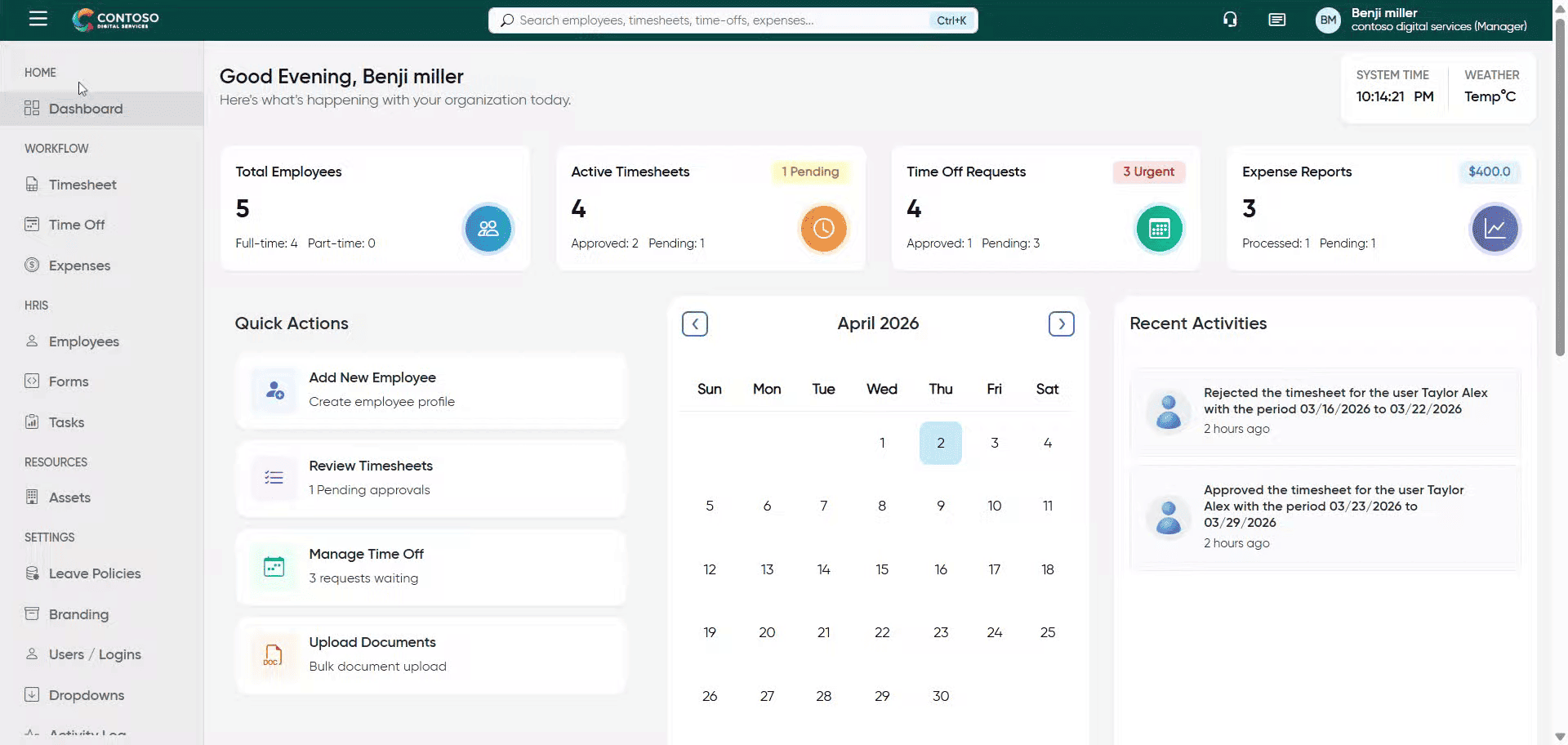
2. Open Time Off Section
Click “Time Off” to navigate to the leave management area where requests are handled.
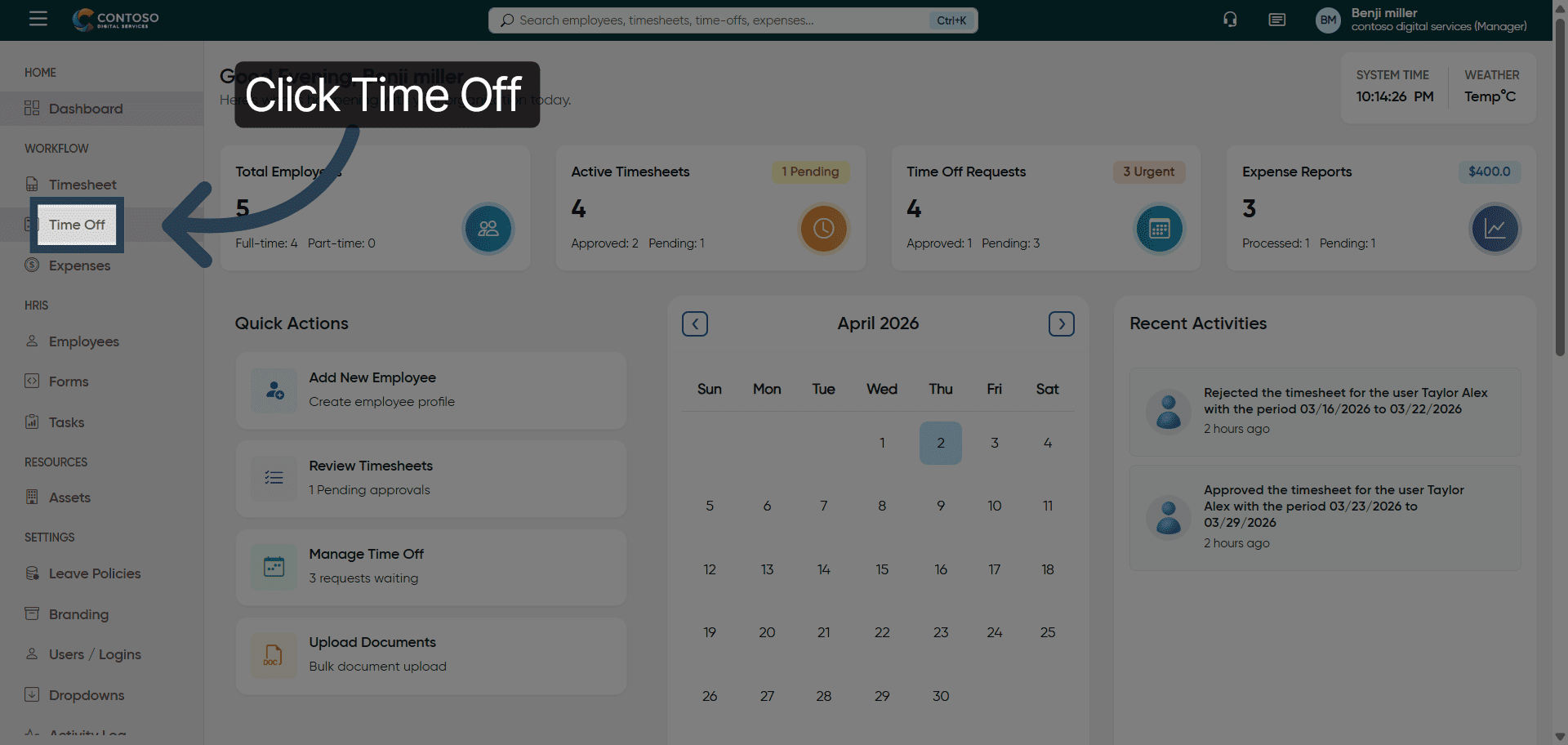
3. Enter Privilege Information
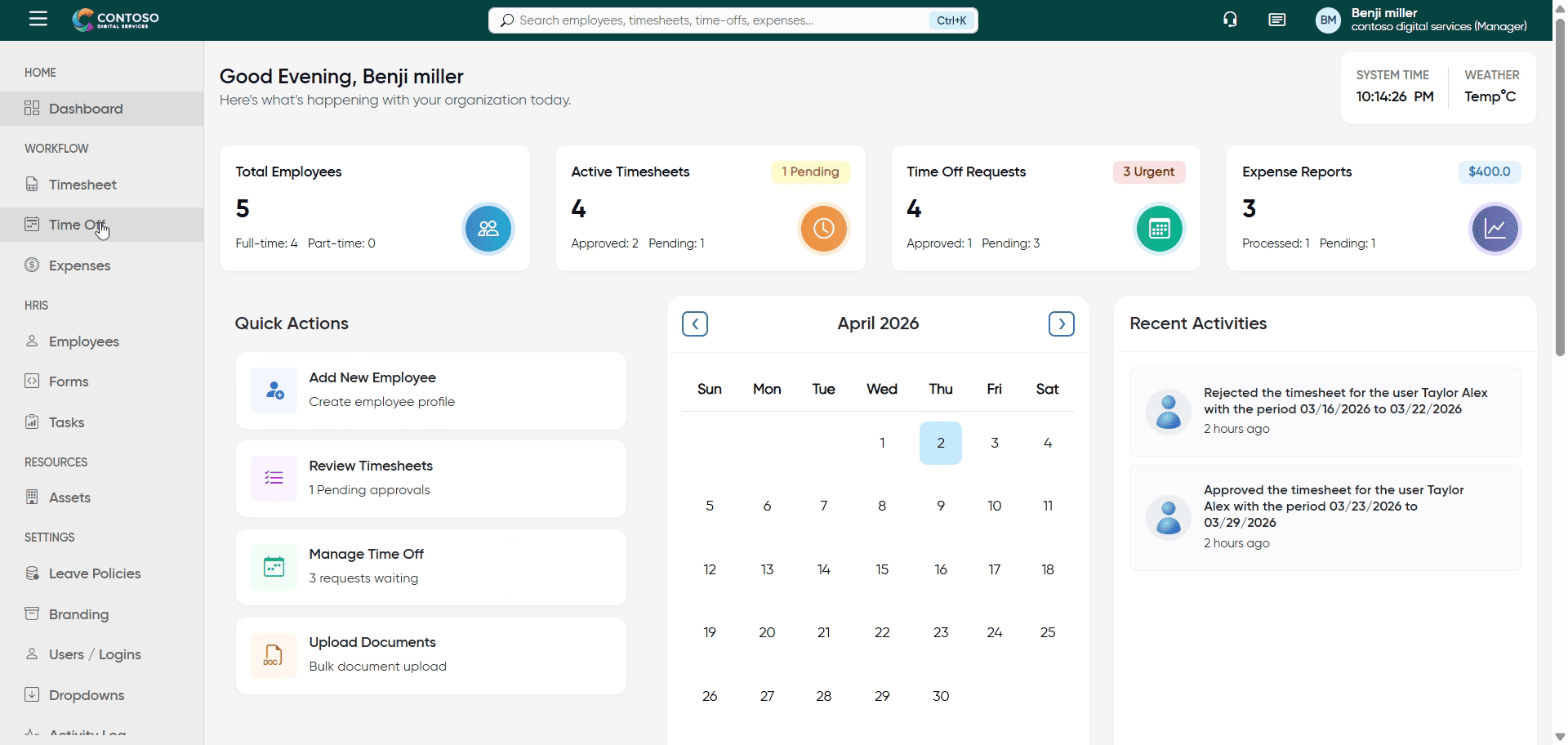
4. Navigate to Leave Details
Click here to access detailed information about the selected leave request.
5. View Leave Request
Click “View” to open the full details of the leave application for review.
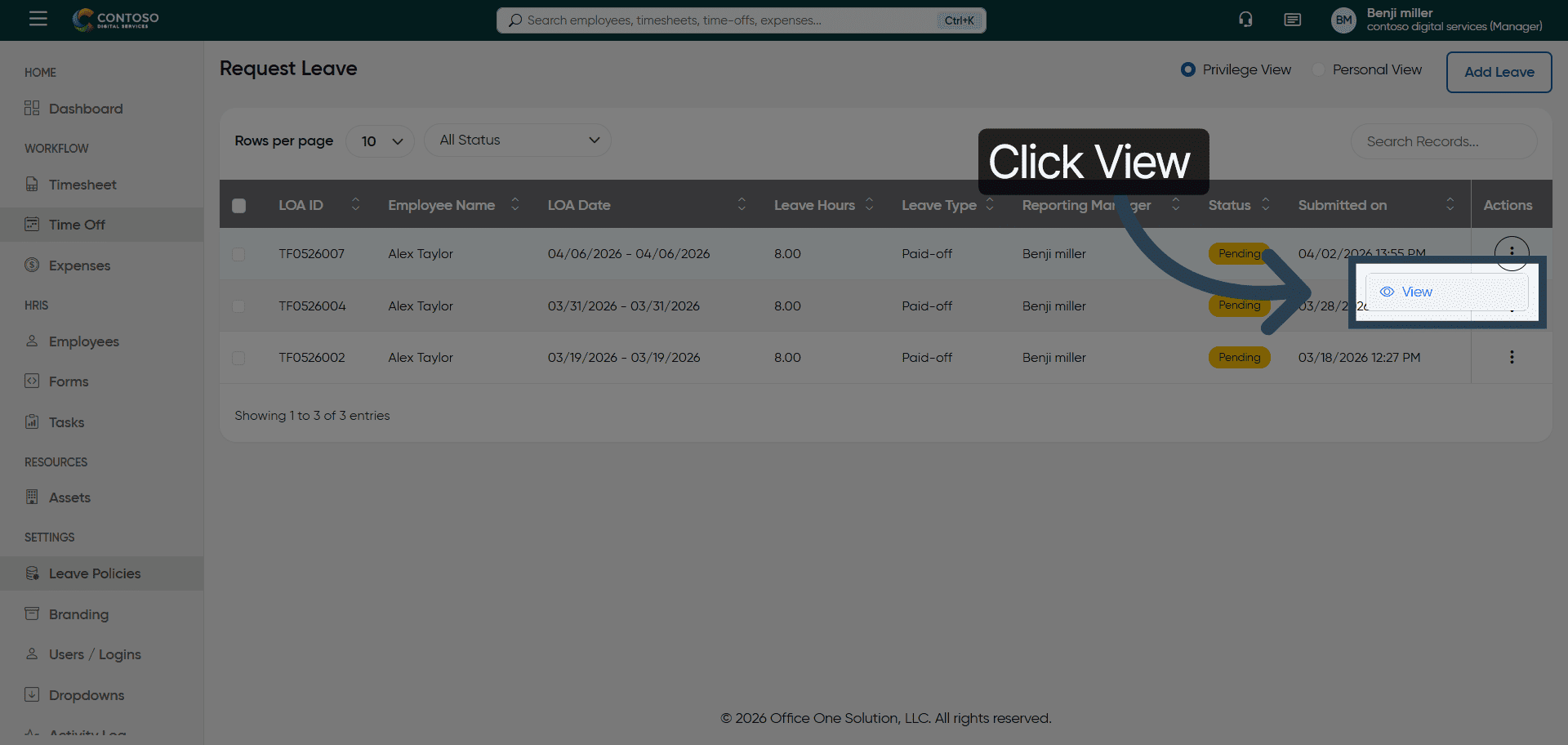
6. Approve Leave Request
Click “Approve” to accept the leave request and proceed with the approval process.
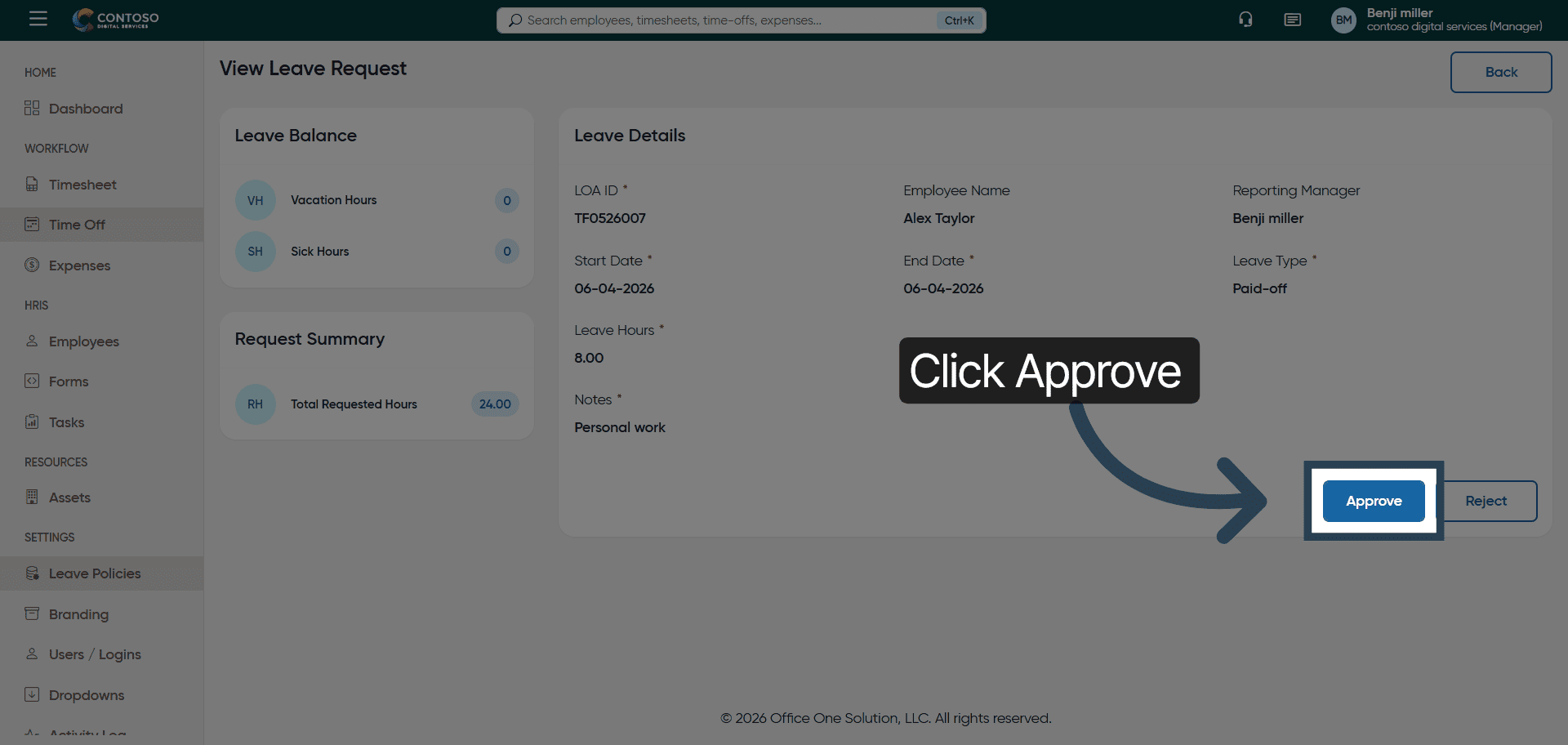
7. Confirm Approval
Click “Yes” to confirm the approval of the leave request.
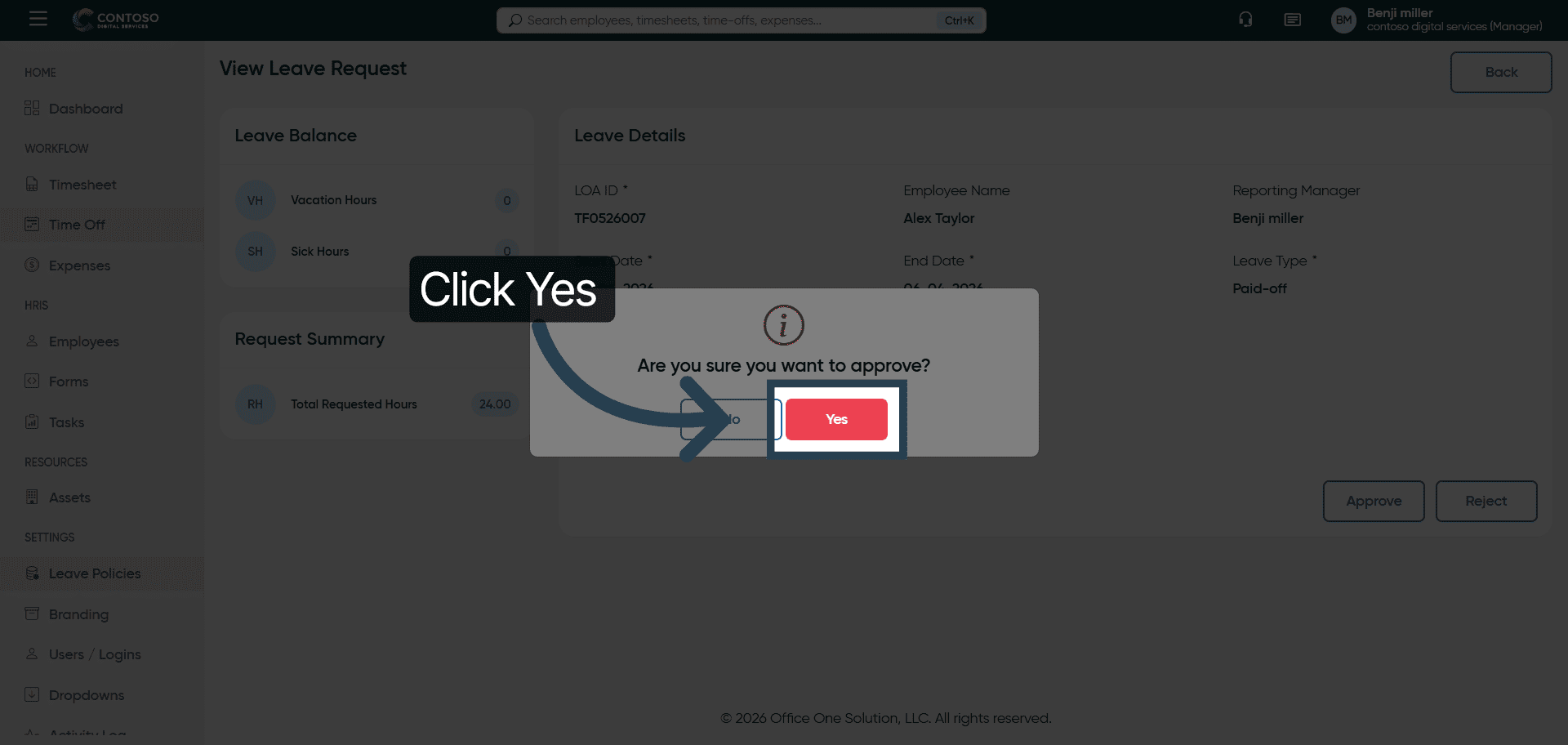
8. Return to Leave List
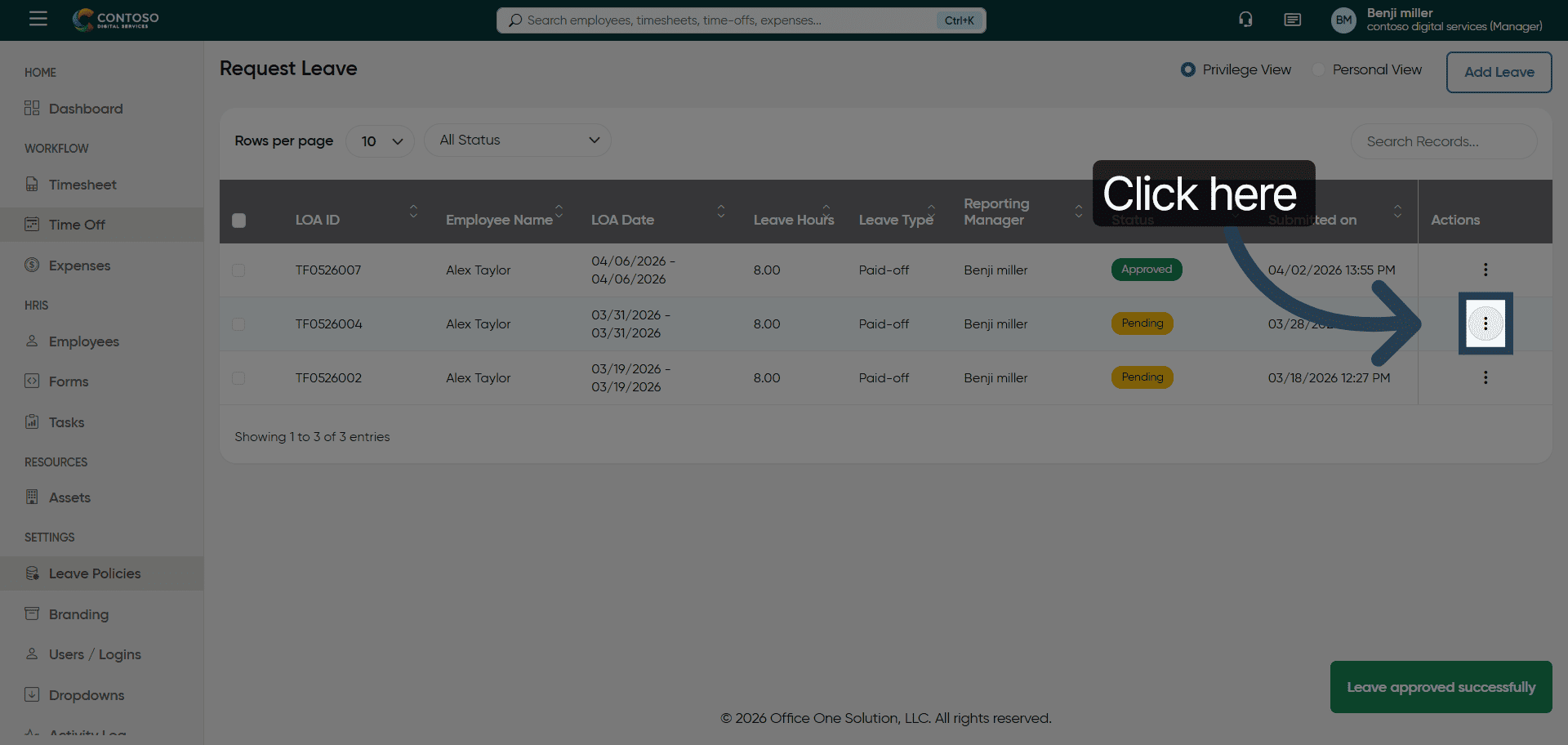
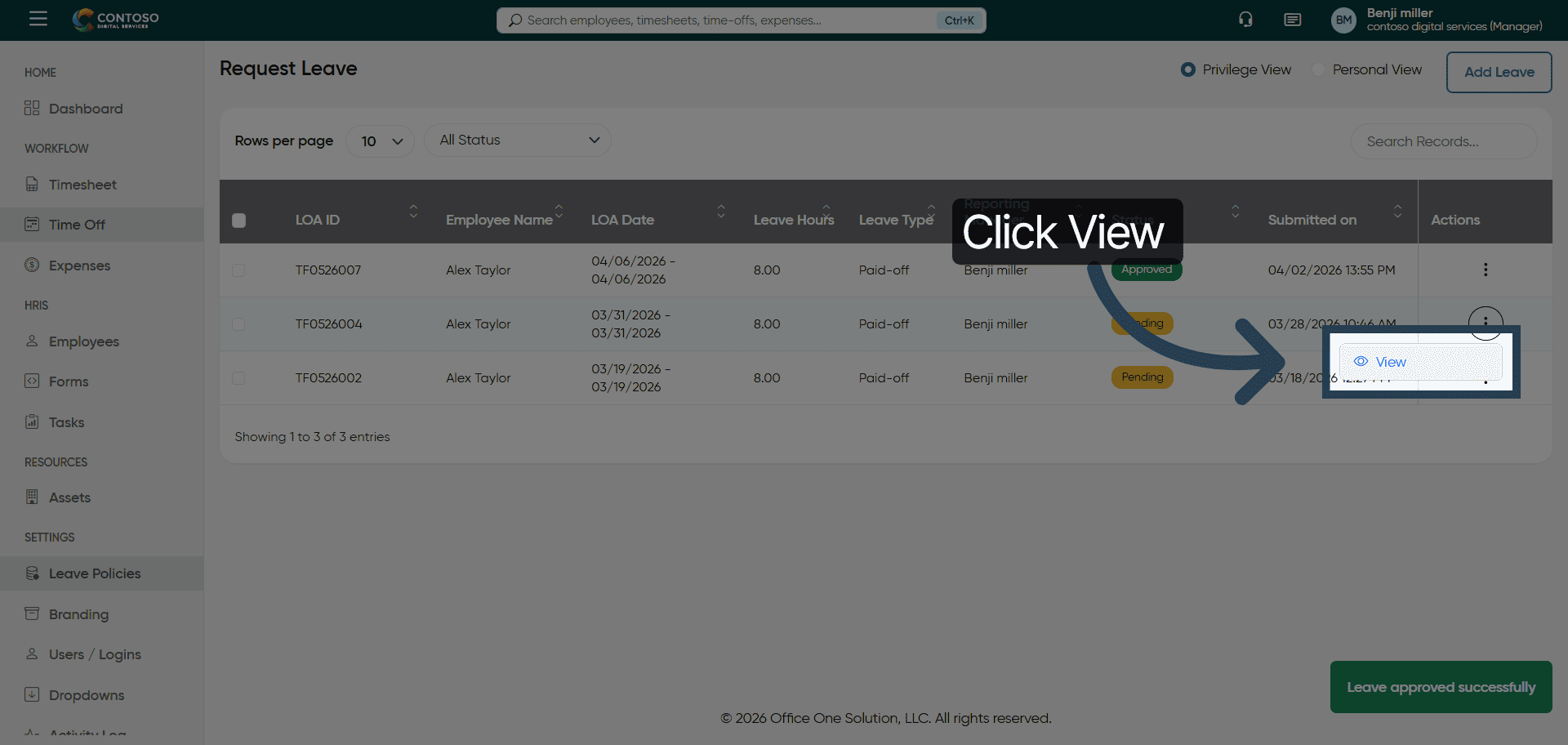
9. View Another Leave Request
Click “View” to open another leave application for evaluation.
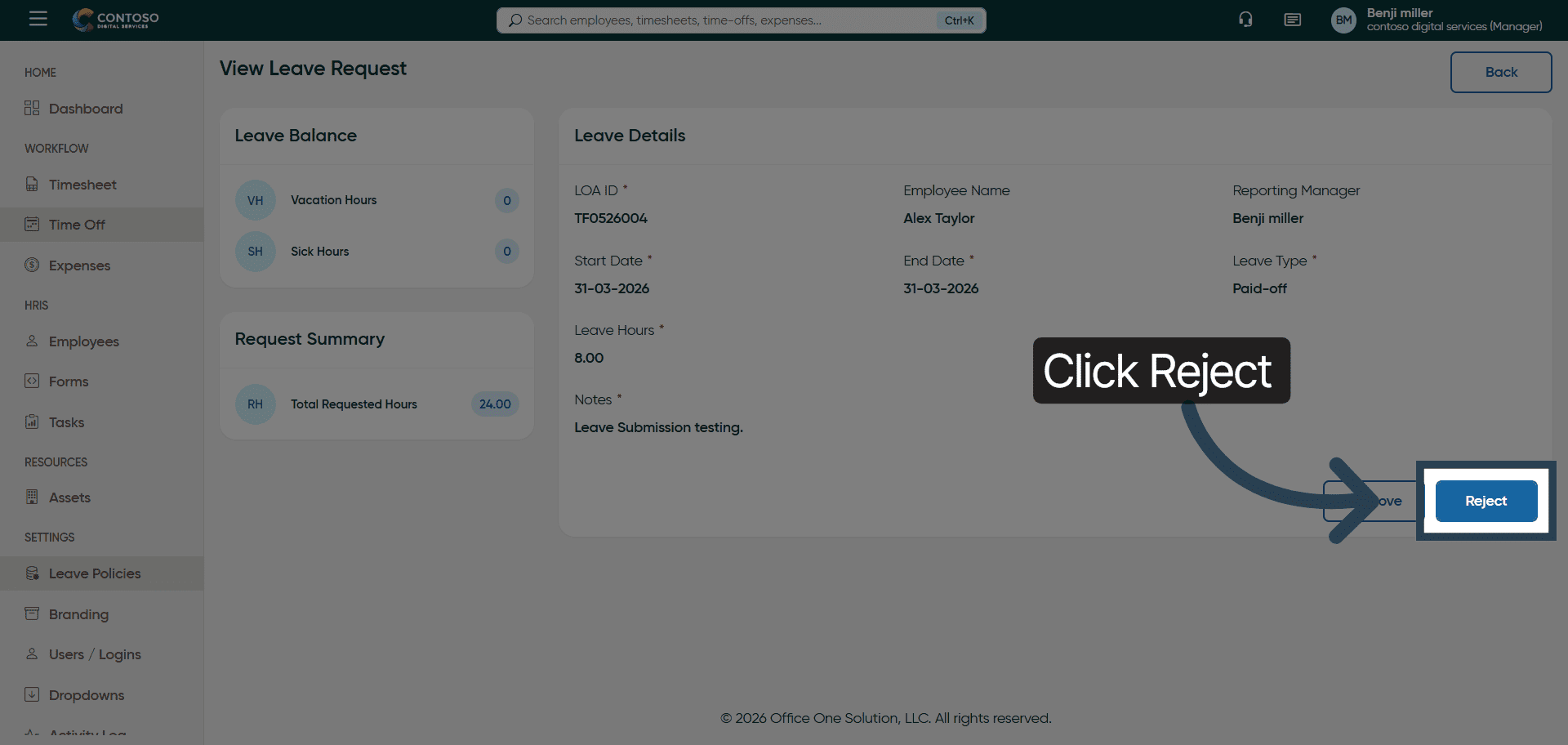
10. Reject Leave Request
Click “Reject” to decline the leave request based on your assessment.
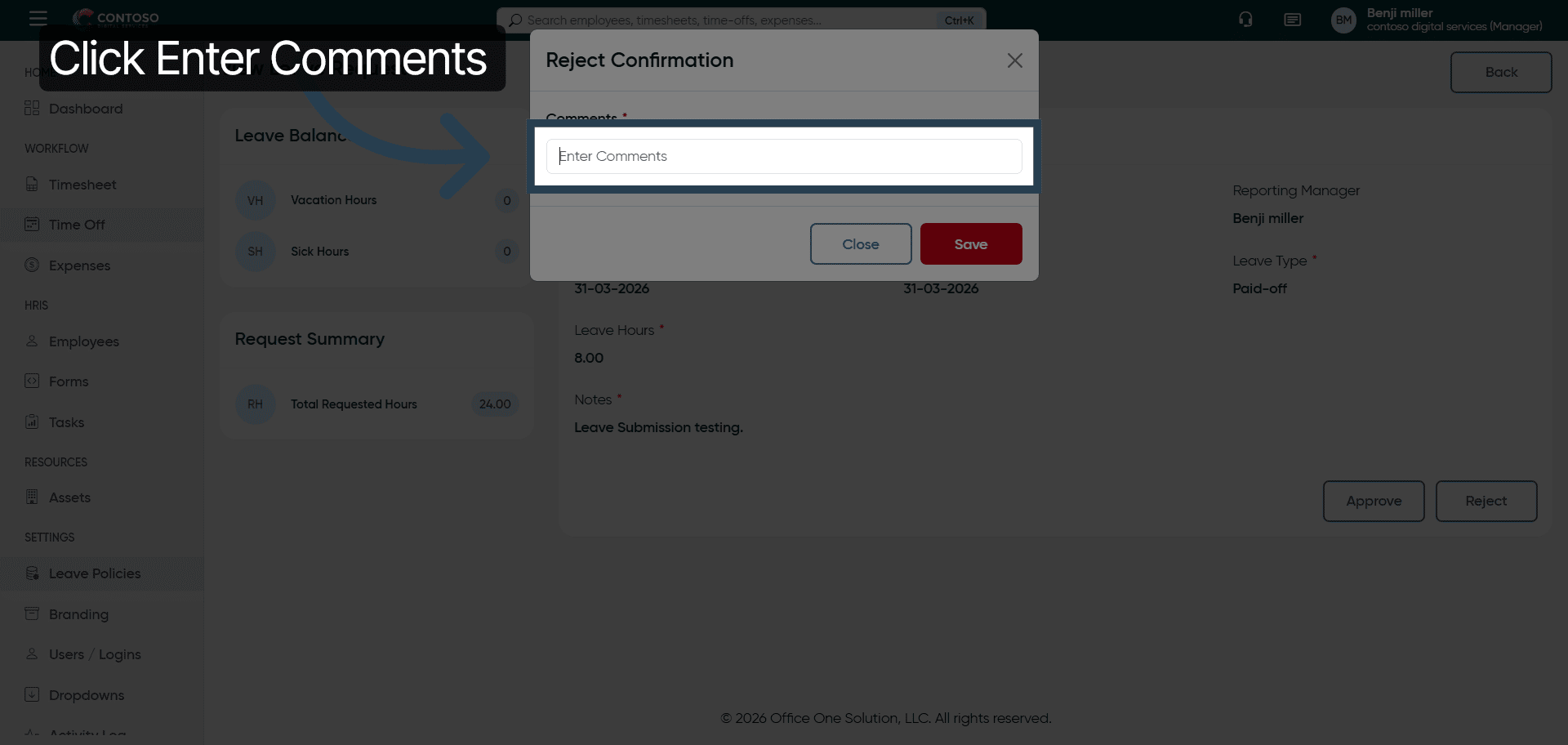
11. Add Rejection Comments
Fill in all the reasons for rejection.
12. Provide Rejection Reason
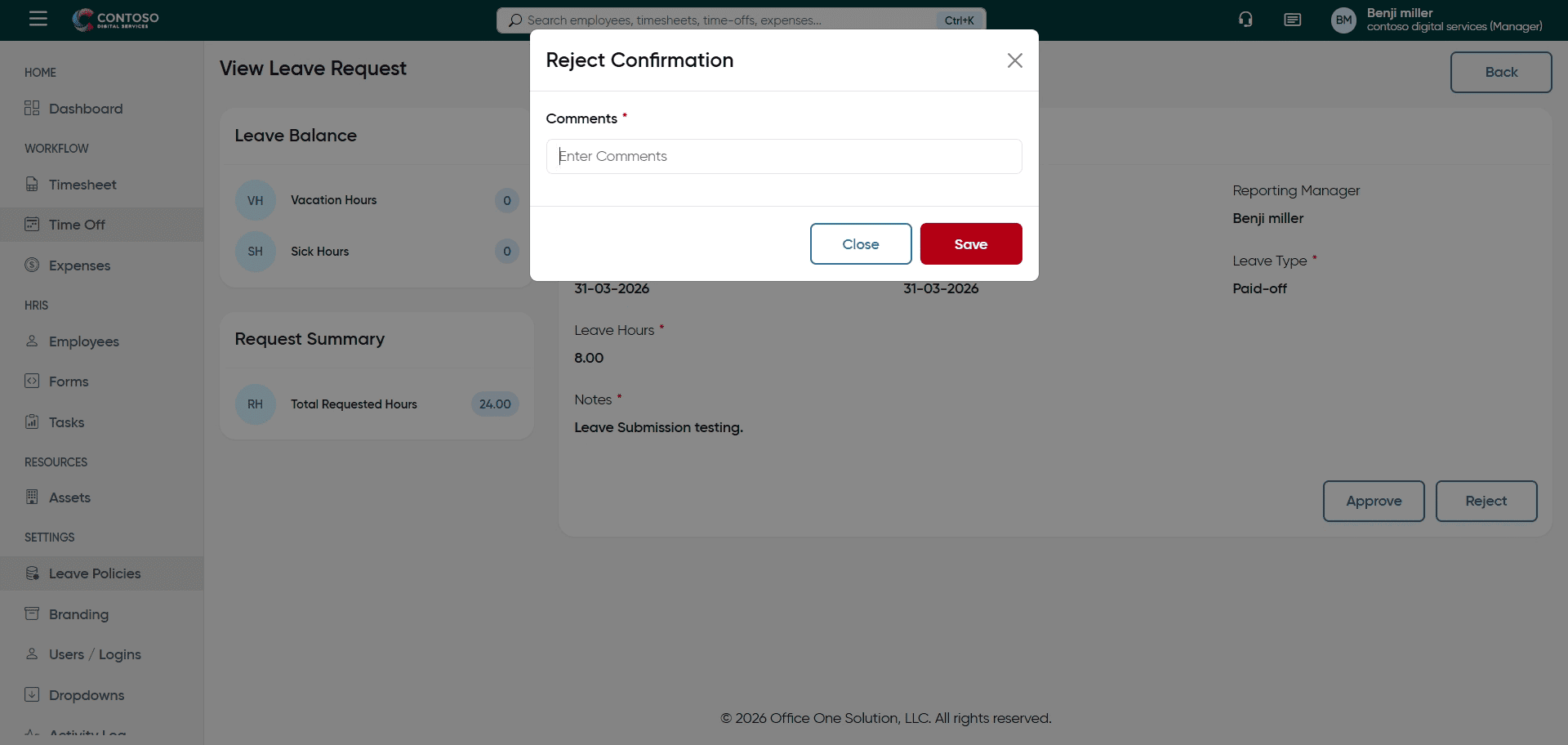
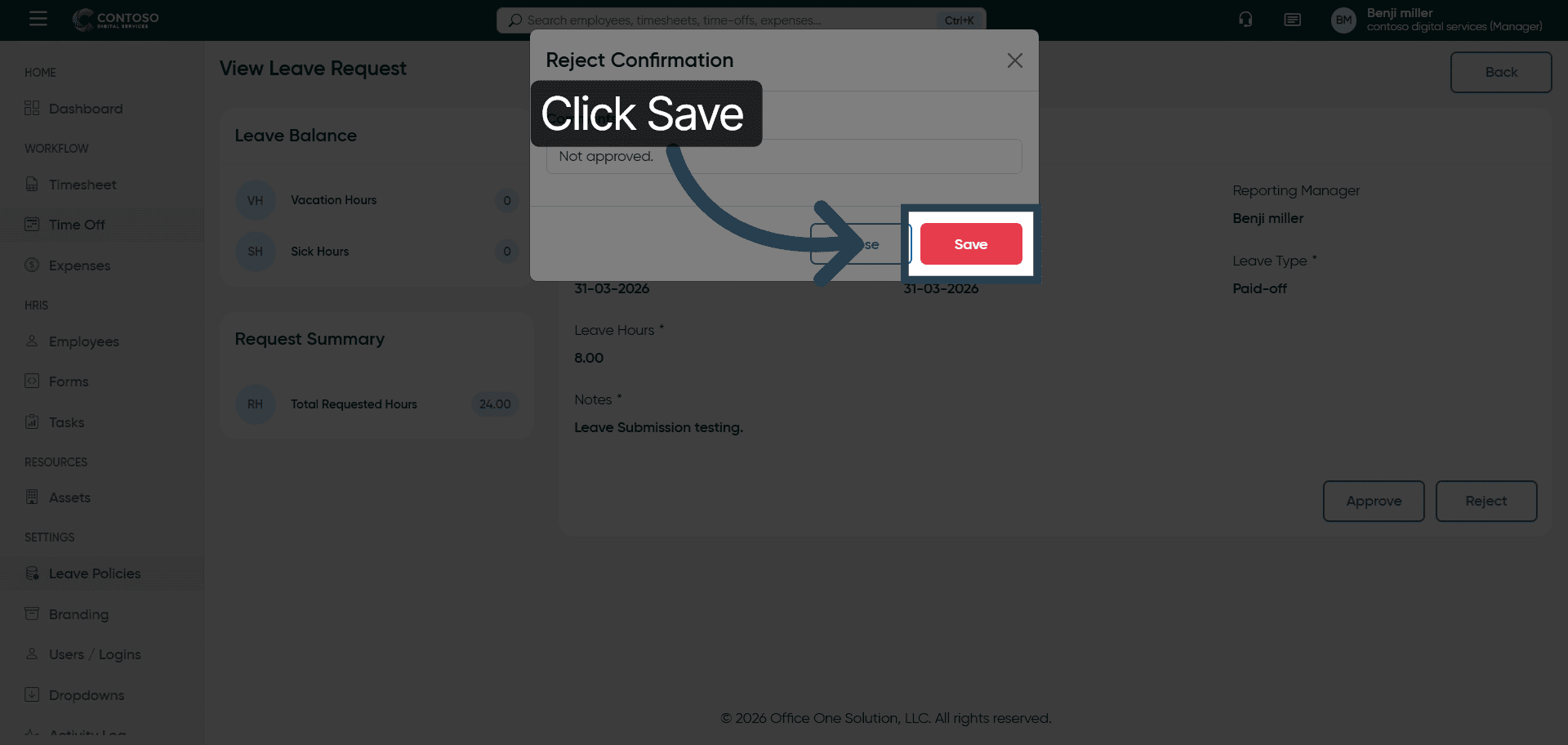
13. Save Rejection
Click “Save” to finalize and record the rejection of the leave request.
You have successfully managed leave requests by reviewing, approving, or rejecting applications in OfficeOne