
Add Expense
Go to app.office1solution.com
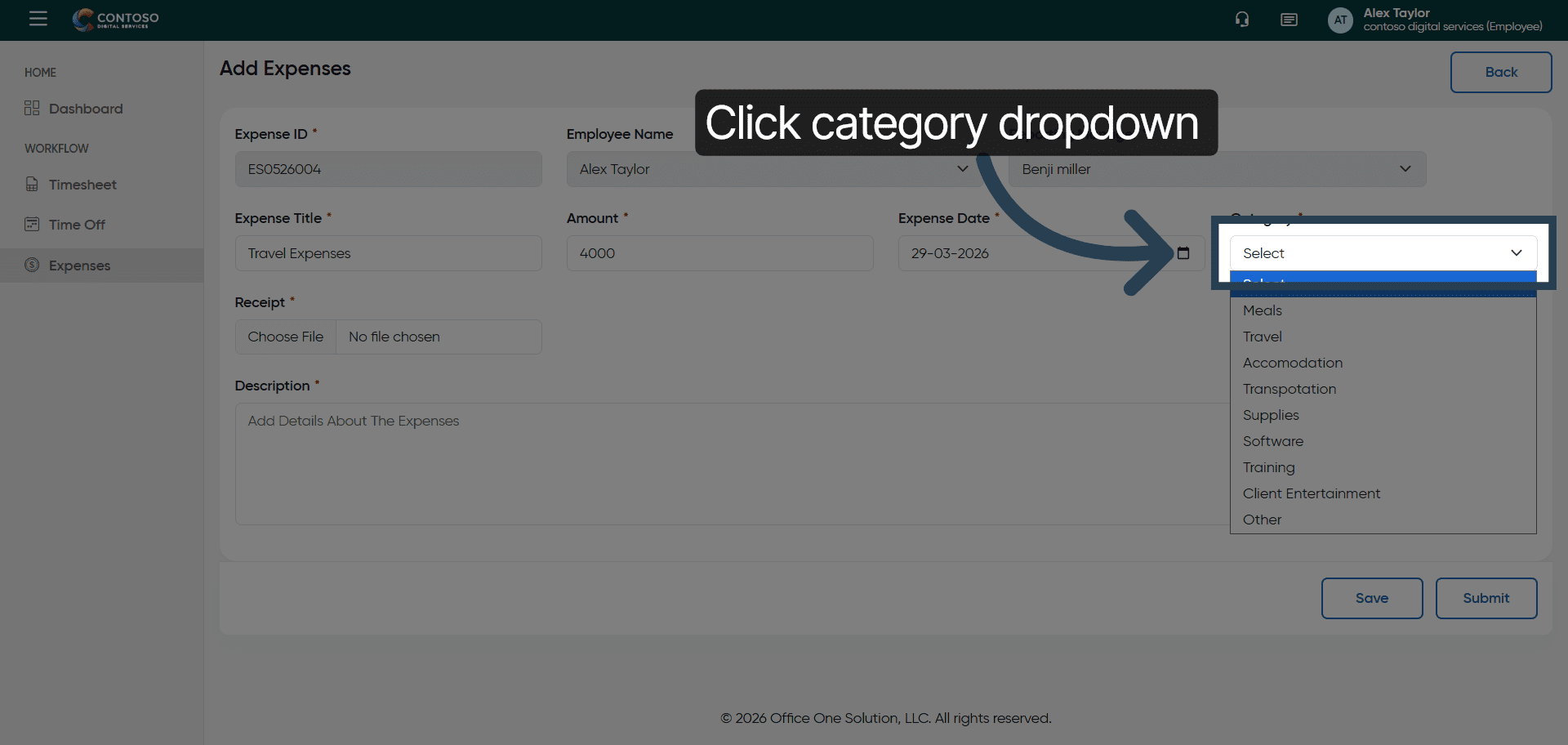
1. Open Expense Category Dropdown
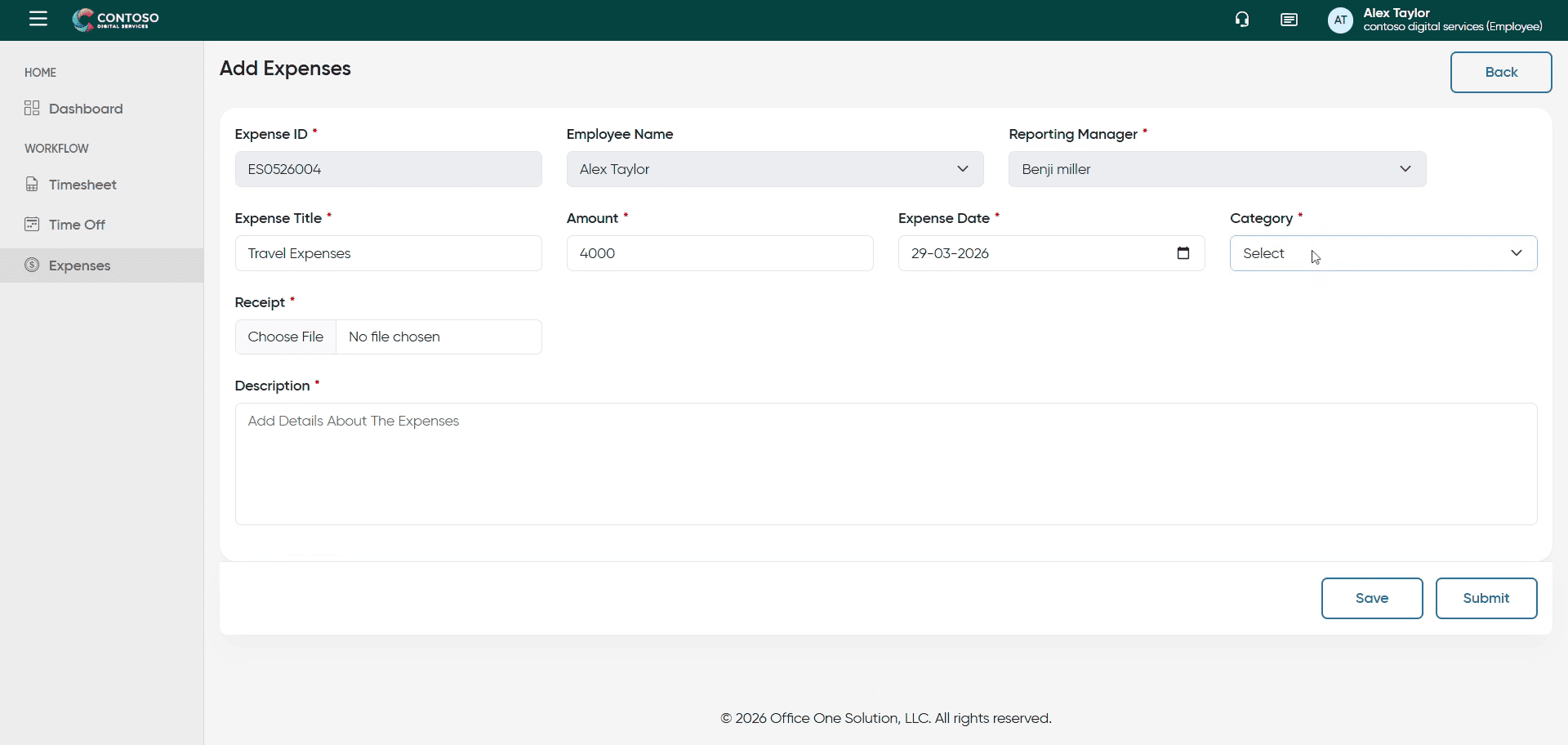
2. Select Expense Category
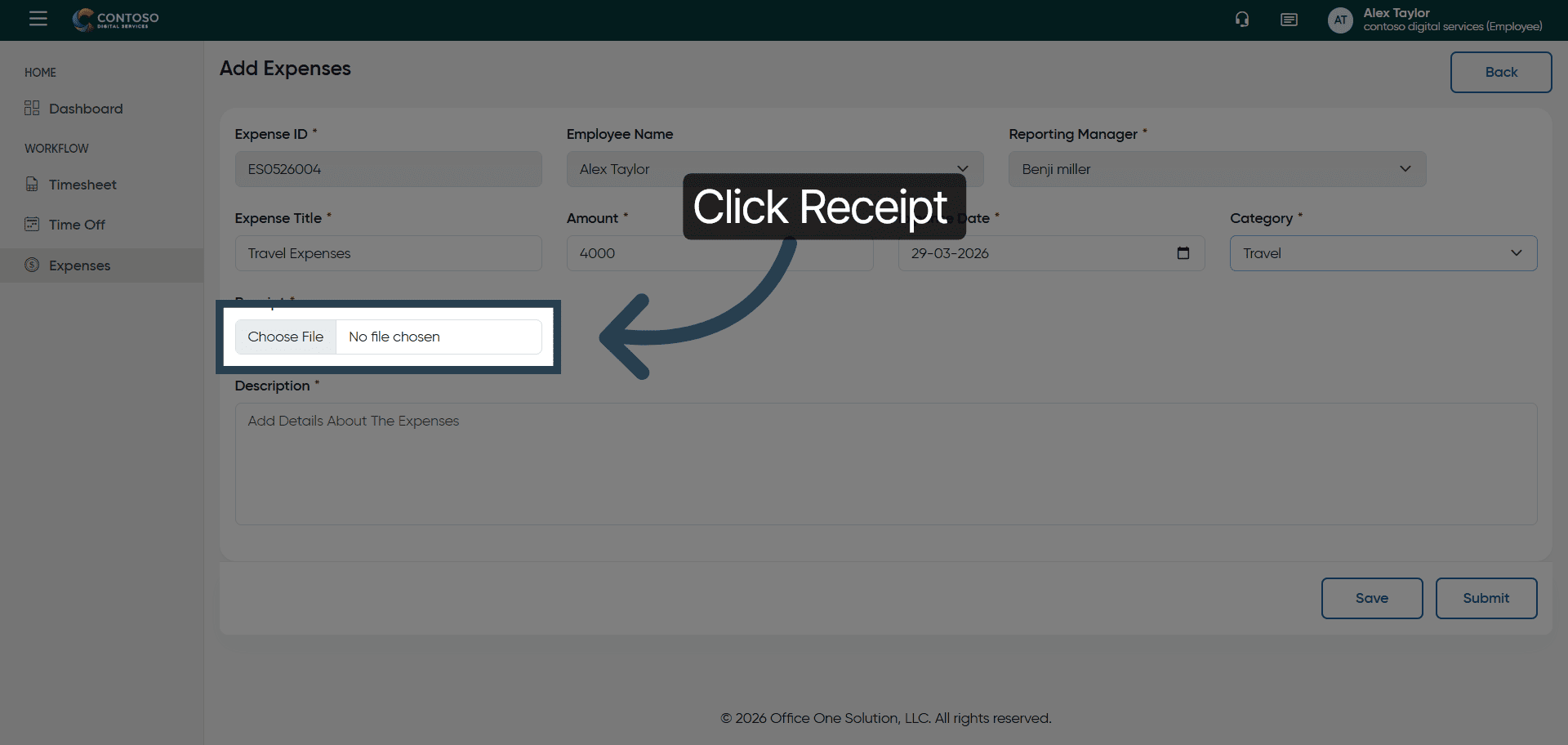
3. Access Receipt Upload
Click the Receipt section to upload supporting documents for your expense.
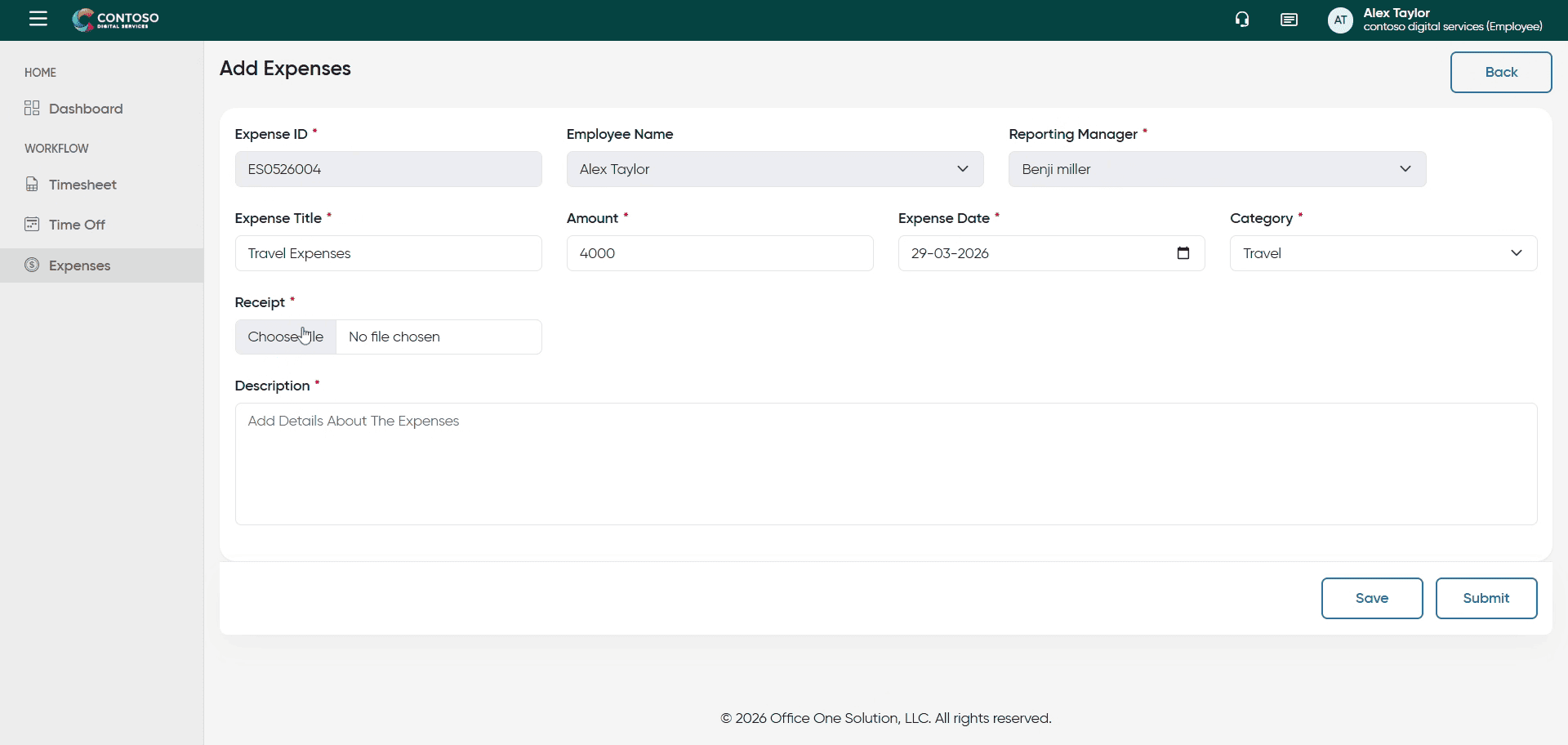
4. Upload Receipt File
Upload the receipt file to attach proof of the expense.
5. Select Description Field
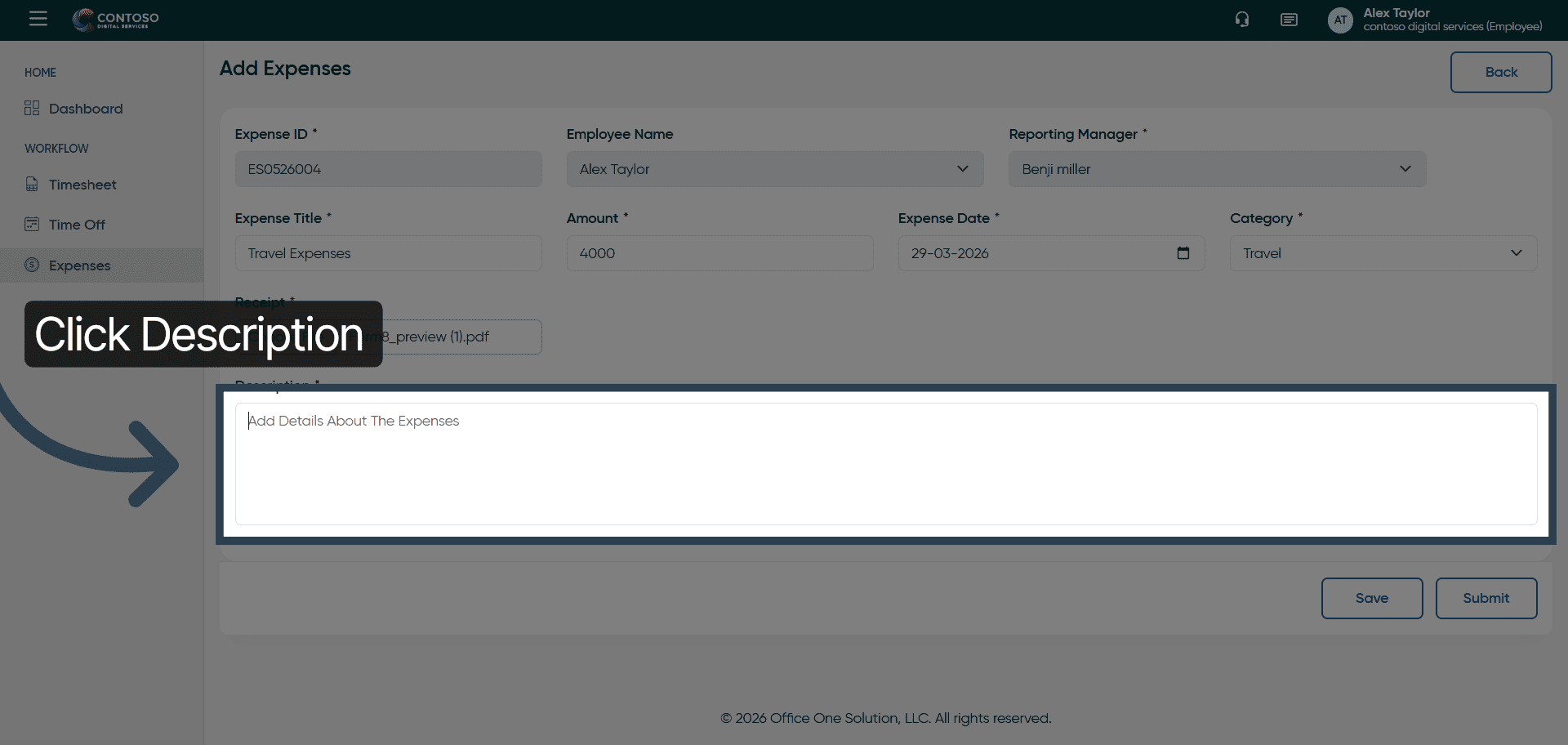
6. Enter Expense Description
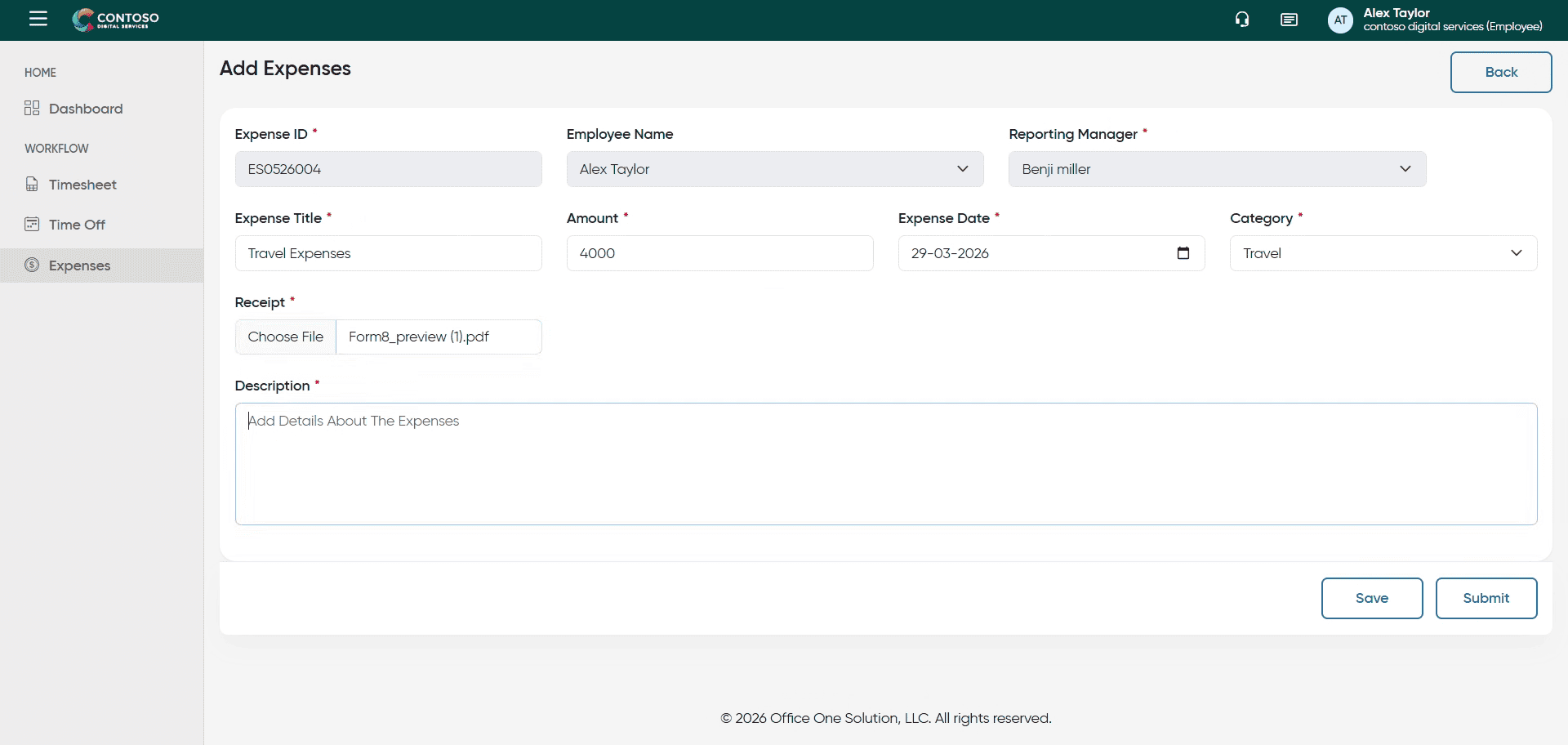
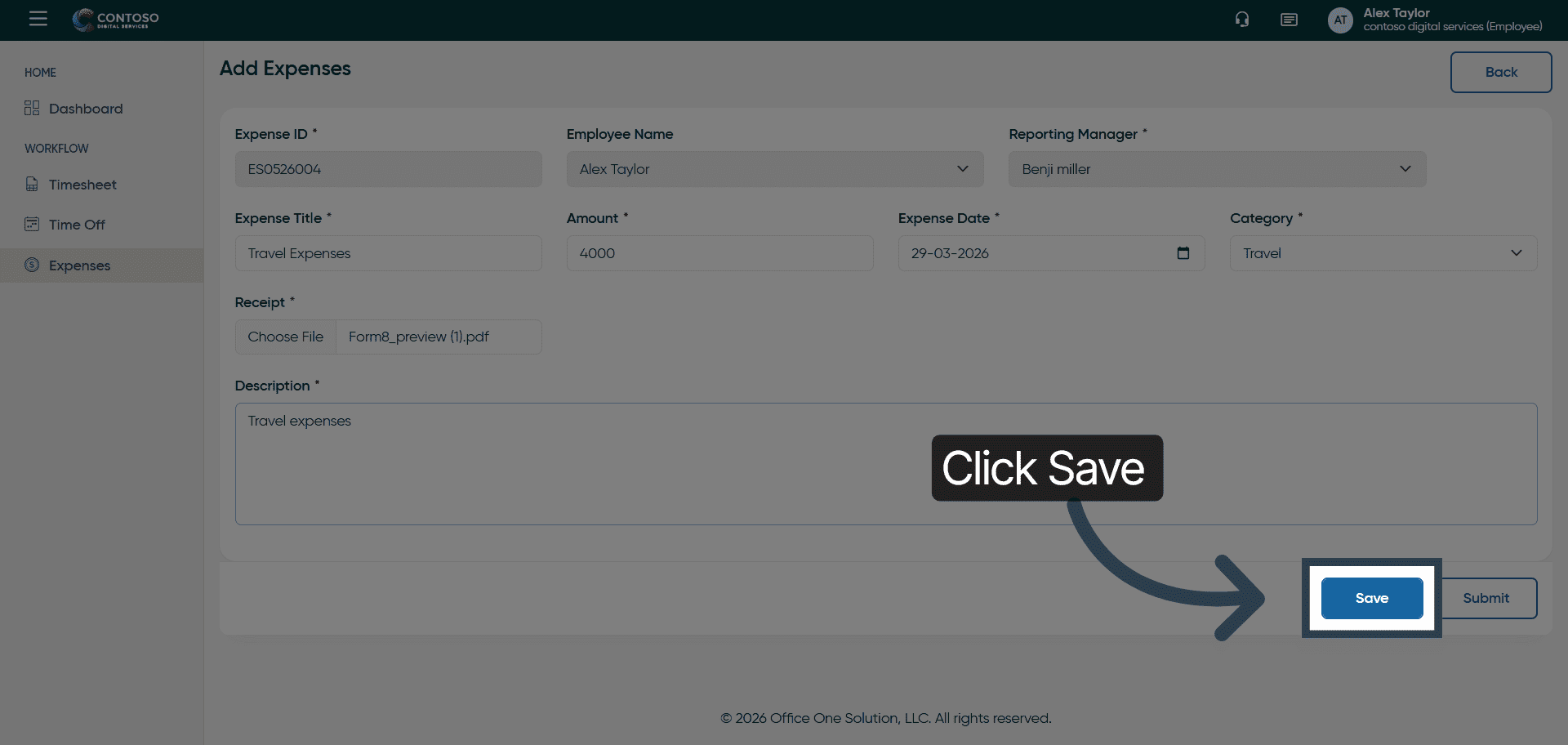
7. Save Expense Entry
Click the Save button to store the expense information you have entered.
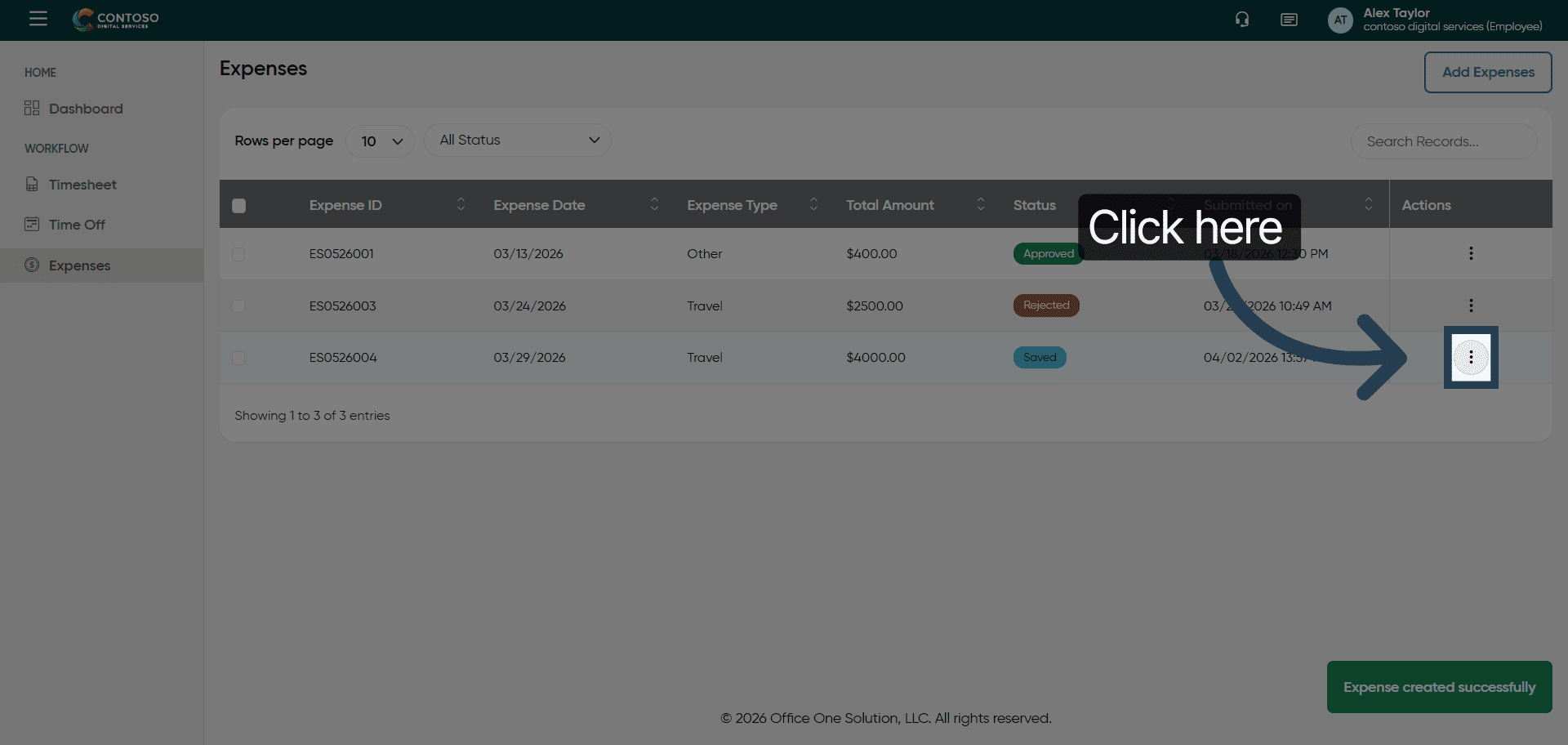
8. Open Expense Details
Click here to view the details of the expense you just added.
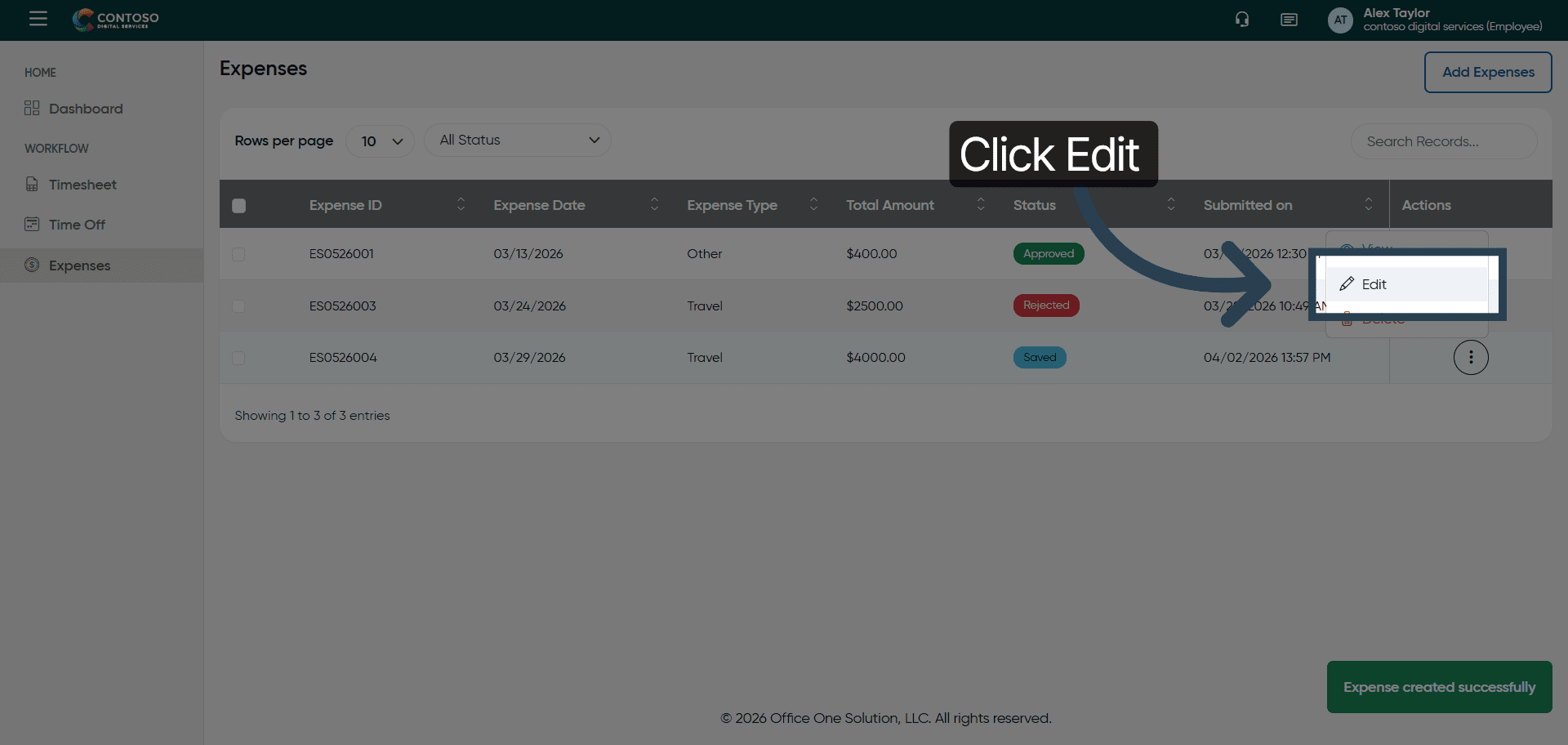
9. Edit Expense Record
Click the Edit button to modify the expense details if needed.
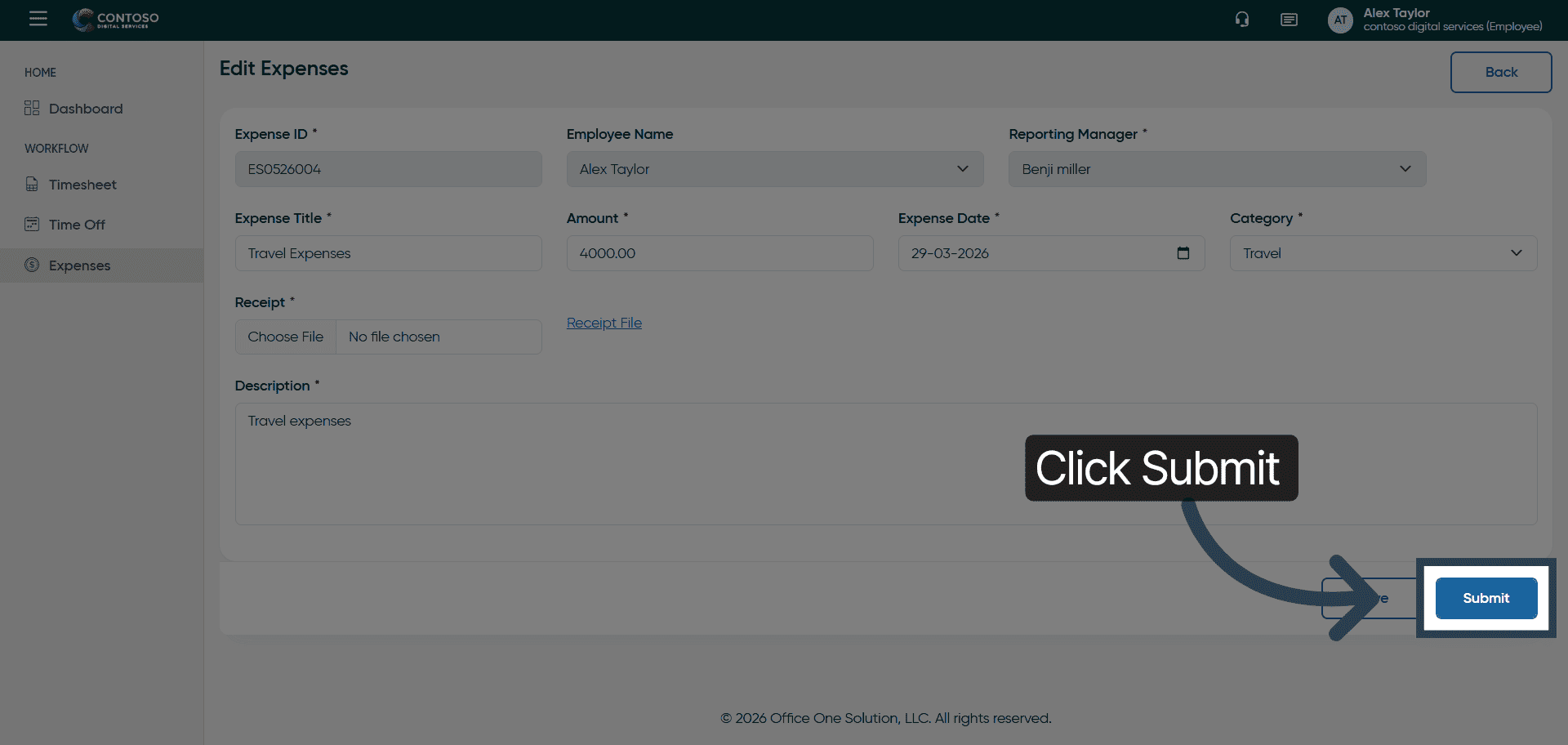
10. Submit Expense Report
Click the Submit button to finalize and send your expense report for approval.
You have successfully added, edited, and submitted an expense report in OfficeOne solution.